
Android Phones & Tablets
Android Phones & Tablets
How To Install Downloader on Android Phones & Tablets
The process below will show you how to install Downloader on Android phones and tablets.
In this example, we are using a Samsung Galaxy S6 Tablet but these same steps work for any Android tablet or mobile device.
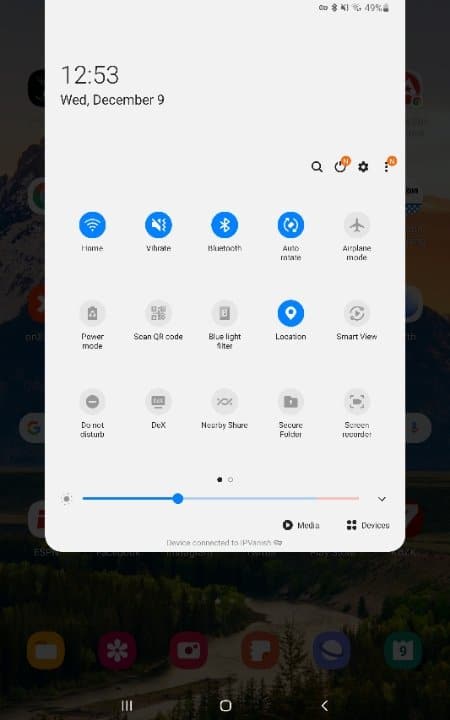
1. Open the settings menu on your Android tablet or mobile device.
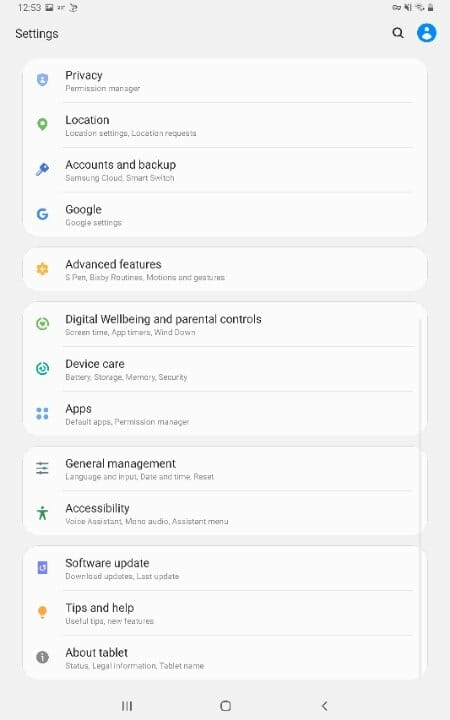
2. Click Apps.
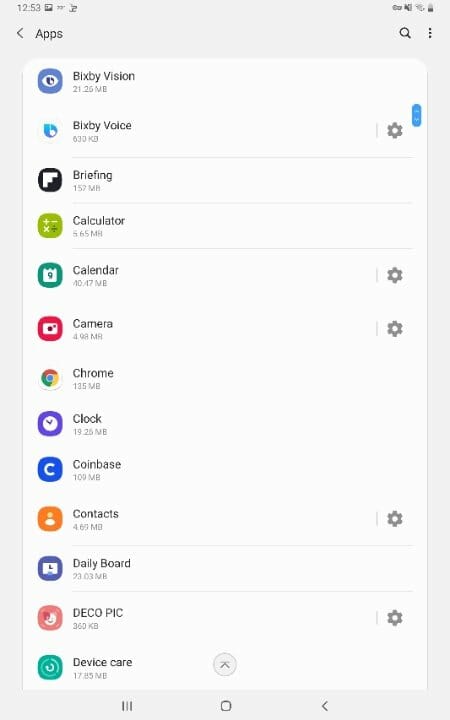
3. Select Chrome or another browser of your choice.
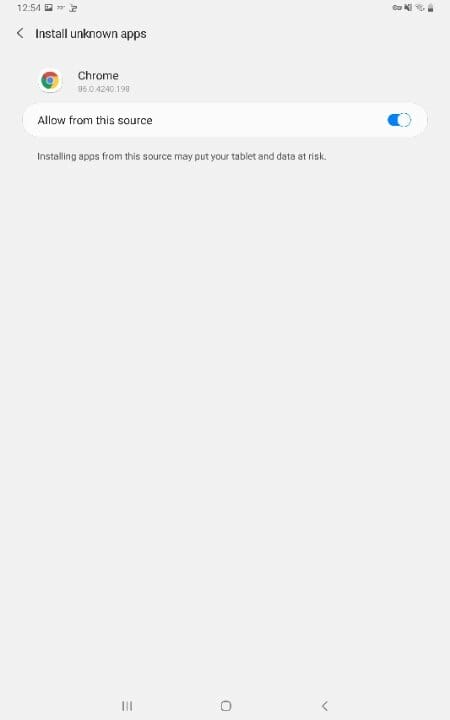
4. Scroll down and click Install unknown apps.
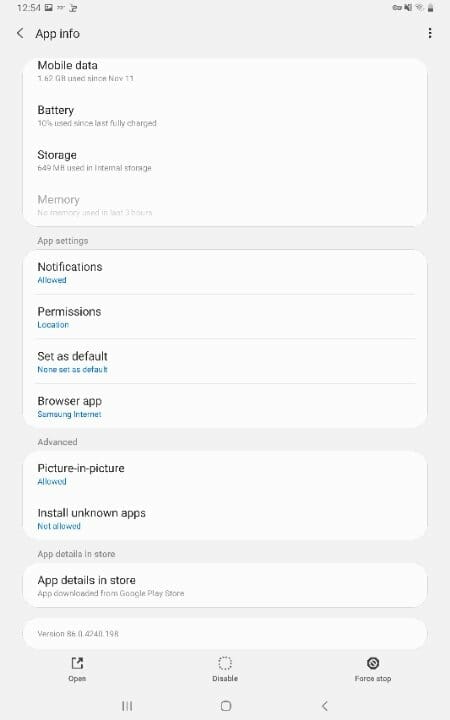
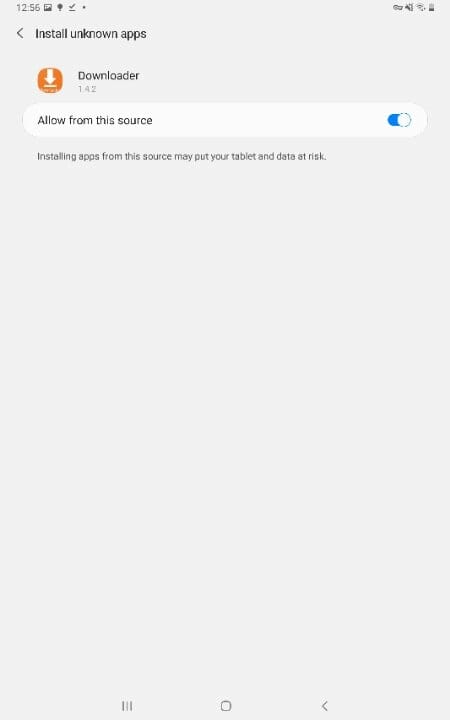
5. Click the toggle to enable Unknown Sources from this app.
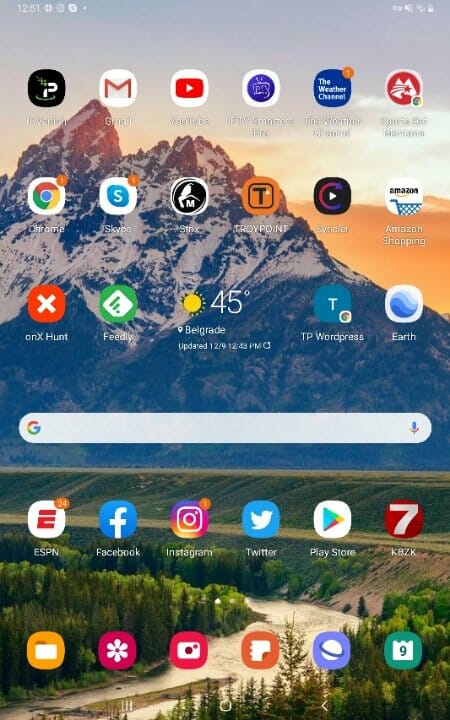
6. Return to the home screen and launch your Browser.
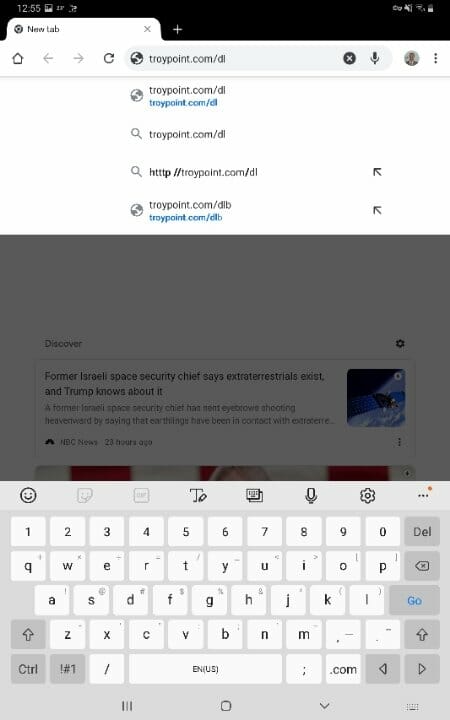
7. Type troypoint.com/dl in the search bar and click Go.
8. Click OK.
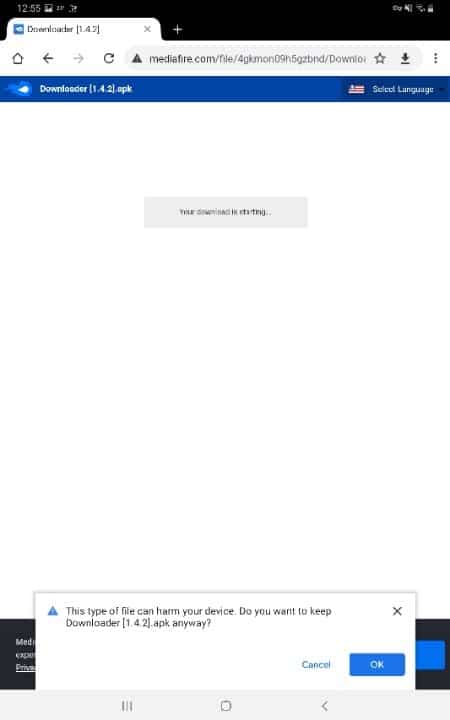
9. Wait for the file to install and click Open.
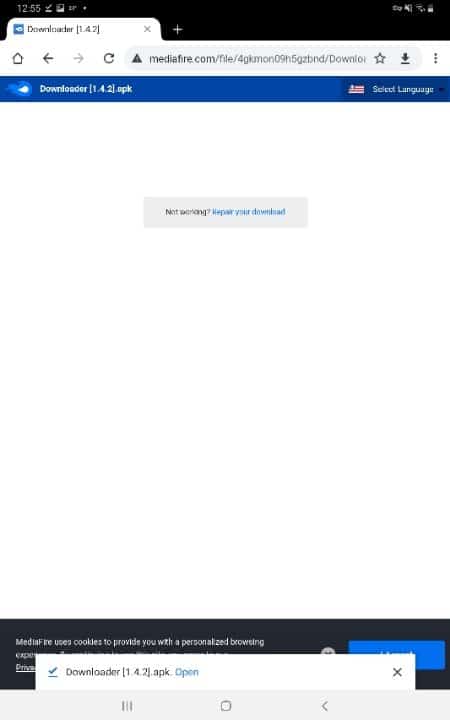
10. Click Install.
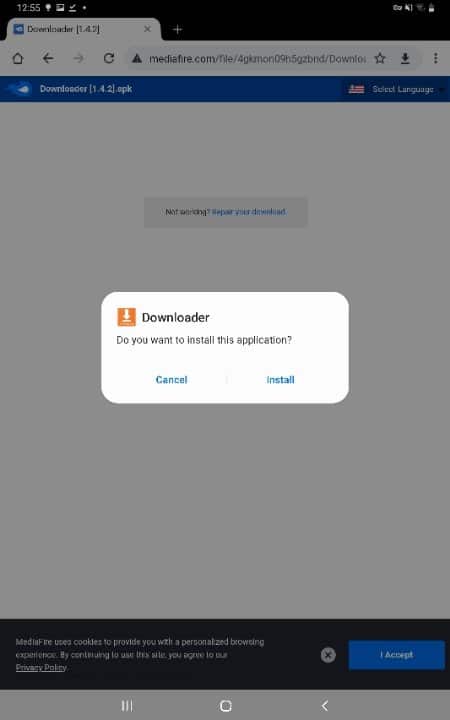
11. Click Done.
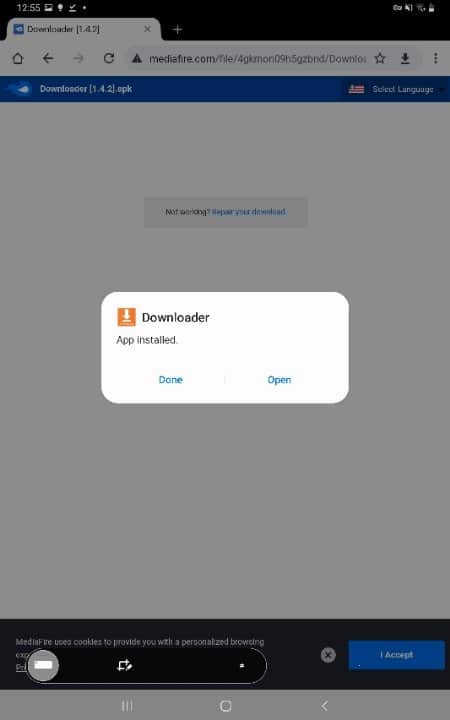
12. Return to app settings to find Downloader and enable the unknown sources toggle.
13. Launch the Downloader application and when prompted click Allow.
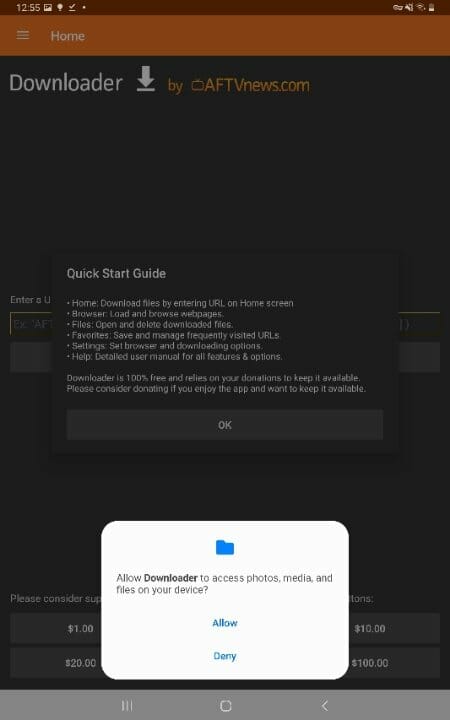
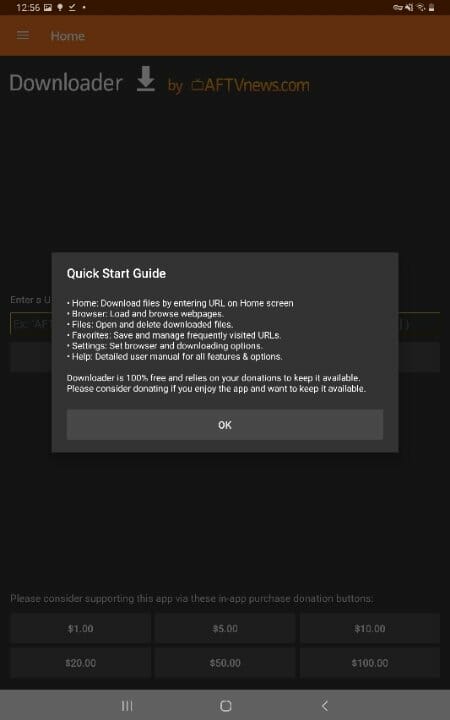
14. Click Ok. You can now sideload apps on your Android phone or tablet!
Comments are closed.