
Android TV (NVIDIA Shield, MECOOL, Dynalink)
Android TV (NVIDIA Shield, MECOOL, Dynalink)
How To Install Downloader on Android TV
In this example, I am using an NVIDIA Shield, but this process works for any device running the Android TV operating system.
This also includes MECOOL Boxes, Tivo Stream 4K, Dynalink, Mi Boxes, and more.
You can view our Downloader on Android TV article for more information on this process.
1. Select the Google Play Store from the home screen.
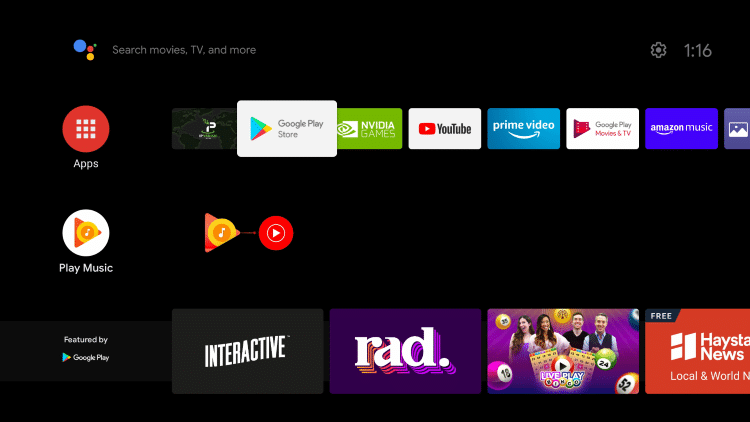
2. Click the search icon.
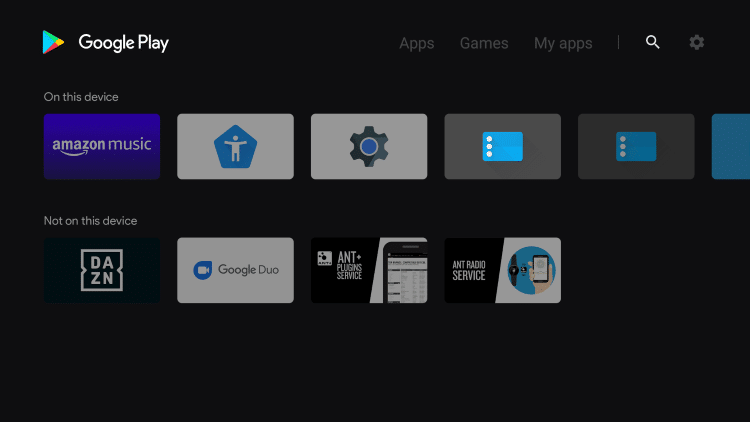
3. Type in “downloader” and click Search.
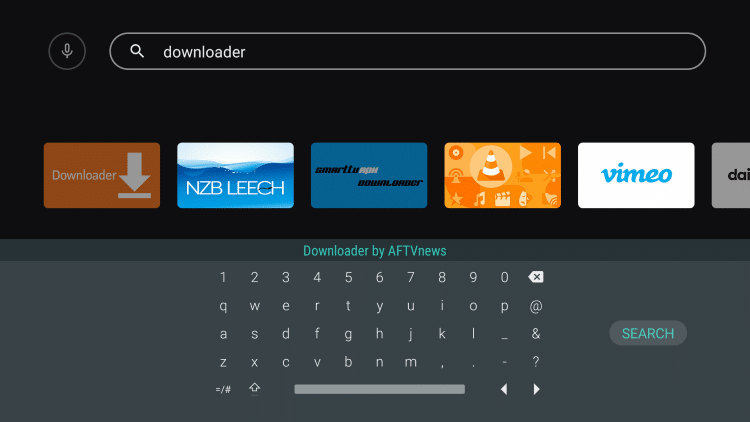
4. Select Downloader by AFTVnews.
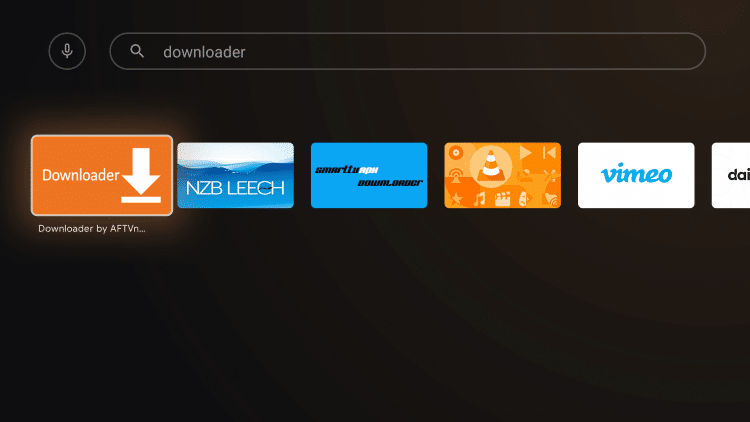
5. Click Install.
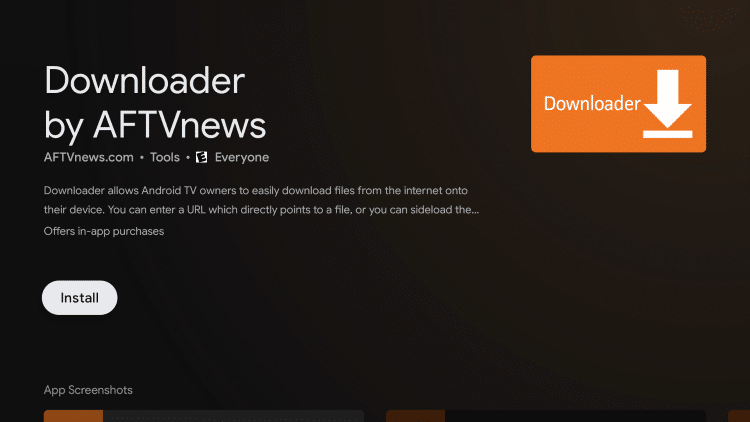
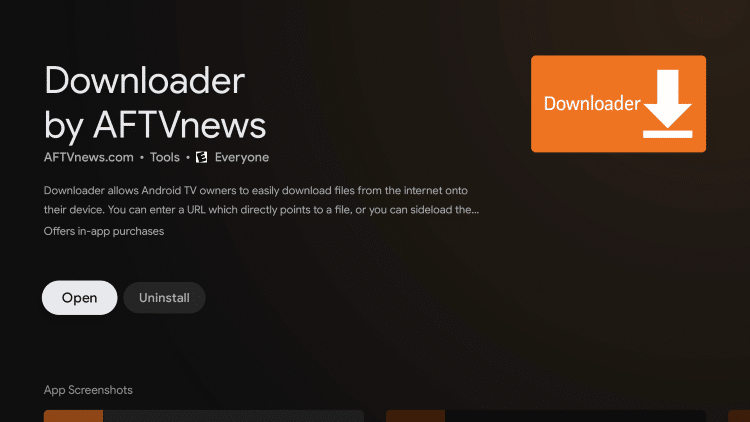
6. After installation return to the home screen.
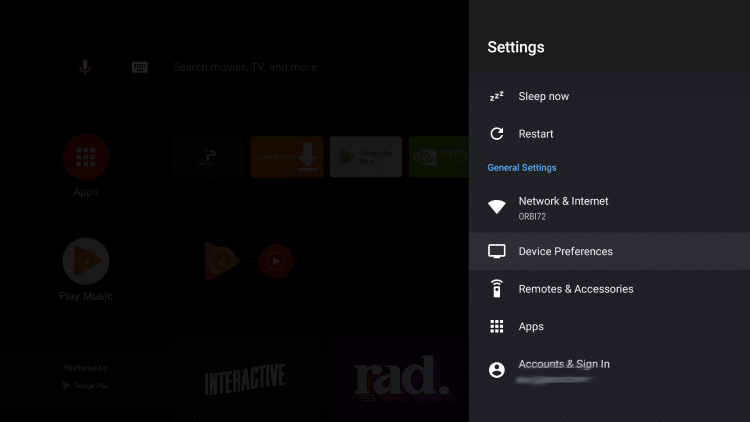
7. Click Settings.

8. Scroll down and click Device Preferences.
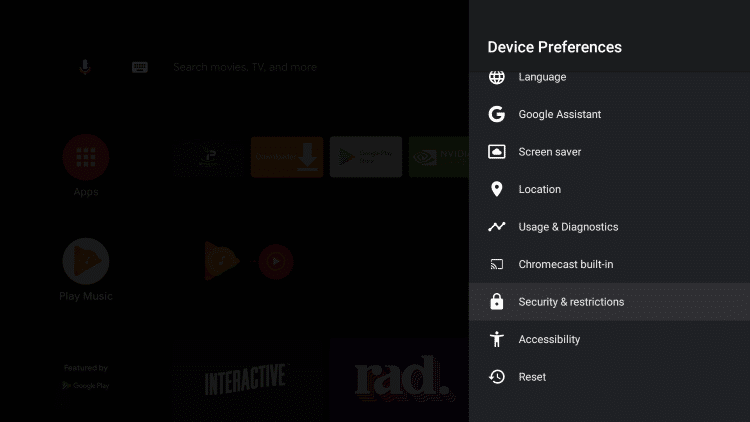
9. Click Security & restrictions.
10. Click Unknown sources.
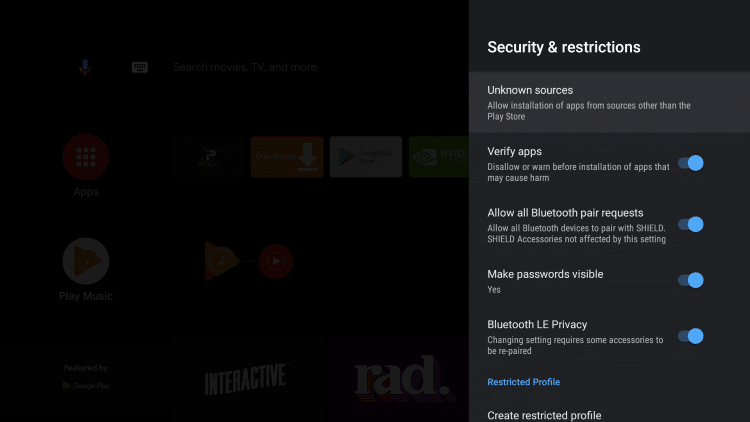
11. Within the Install unknown apps screen, find and click Downloader.
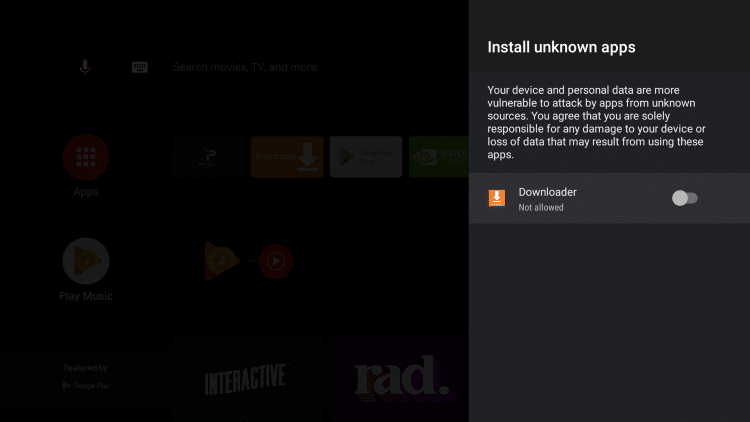
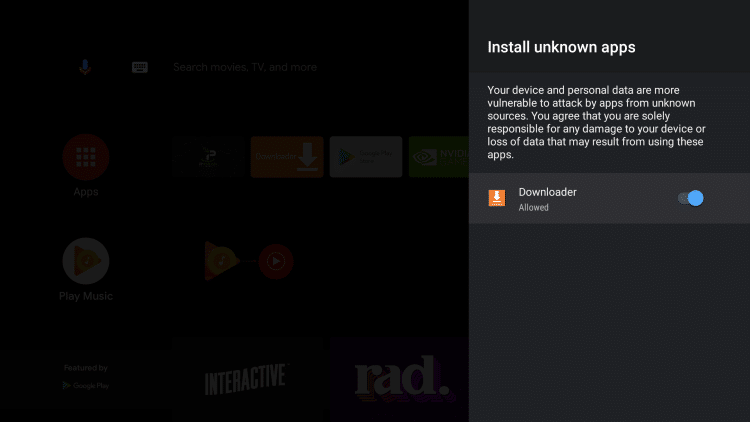
12. That’s it! The Downloader app will now say allowed for sideloading on your device.
How to Install Browser Plugin
Important: If you try to sideload applications using Downloader for the first time on an Android TV device you will likely encounter the following screen.
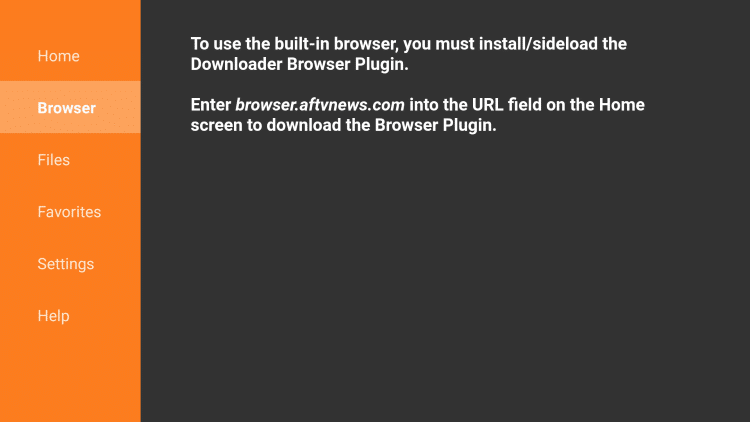
In order to fix this issue, we will need to install the Downloader Browser Plugin. Follow the steps below for instructions.
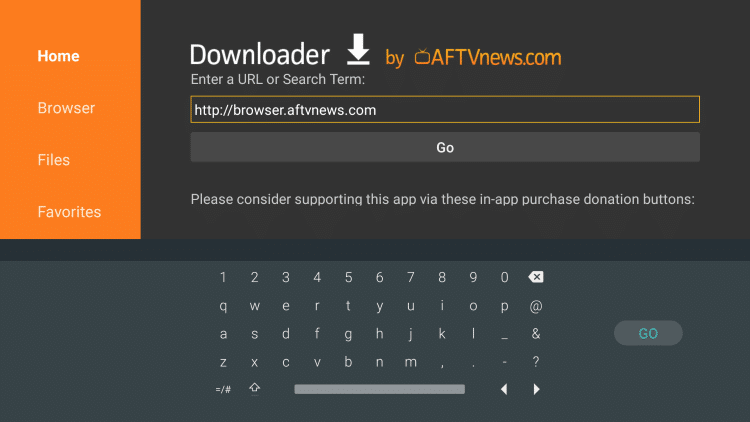
1. Within the search box on the Home screen, enter the following URL – http://browser.aftvnews.com and click Go.
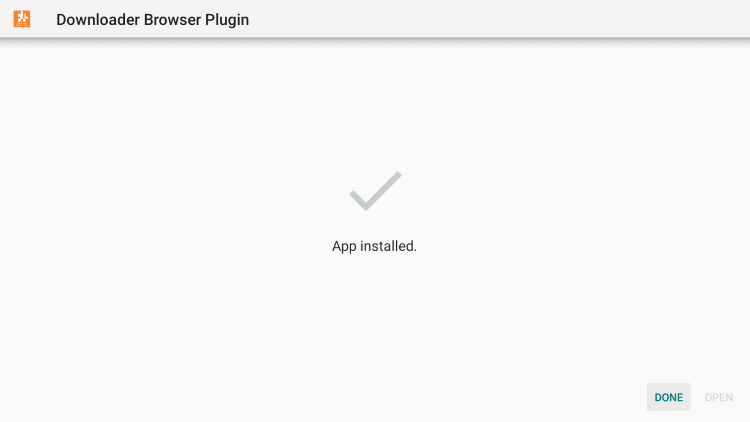
2. Click Install.

3. Click Done.
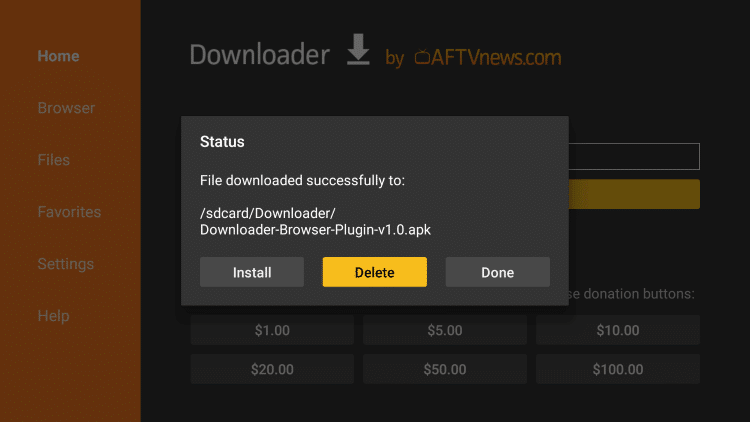
4. Click Delete.
5. Click Delete again.
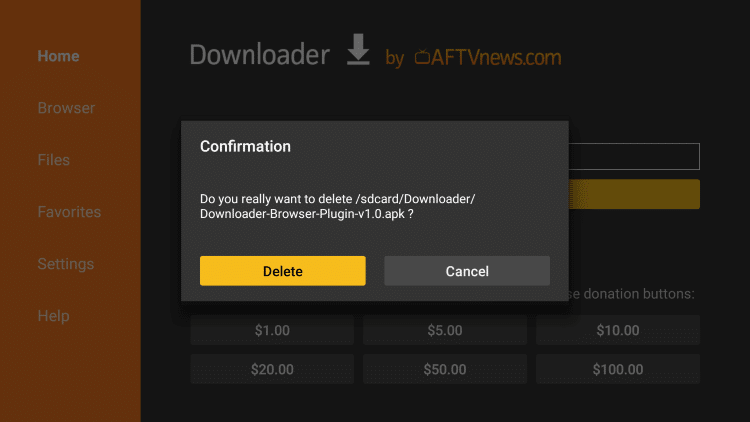
6. That’s it! You have installed the Browser Plugin and can now sideload apps on your Android TV device using Downloader.
Comments are closed.