
Firestick/Fire TV
Firestick/FireTV
The steps below will show you how to install the Downloader app on the Firestick, Fire TV, Fire TV Cube, and any Fire TV device.
With Amazon’s release of their New Firestick Interface, many Firestick/Fire TV users are wondering how to install Downloader using this new interface.
NOTE: Not all devices will have this interface as it is slowly rolling out to Firesticks and Fire TVs.
If your Firestick/Fire TV hasn’t updated to the new interface yet, refer to the old Fire TV interface instructions further down.
1. From the home screen of your device, hover over the Find option.
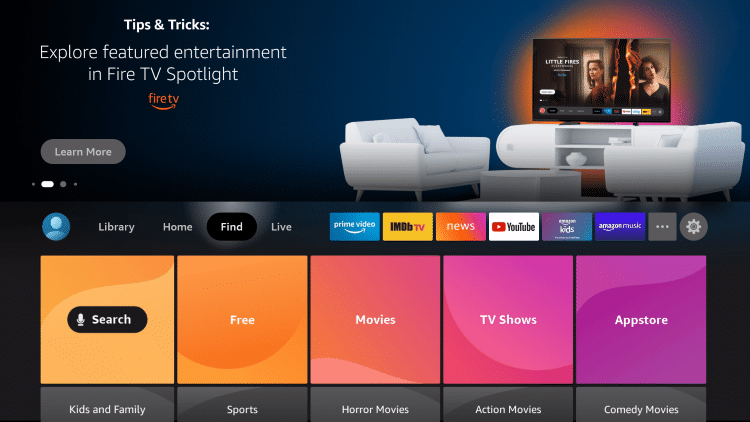
2. Click Search.
3. Search for and select Downloader.
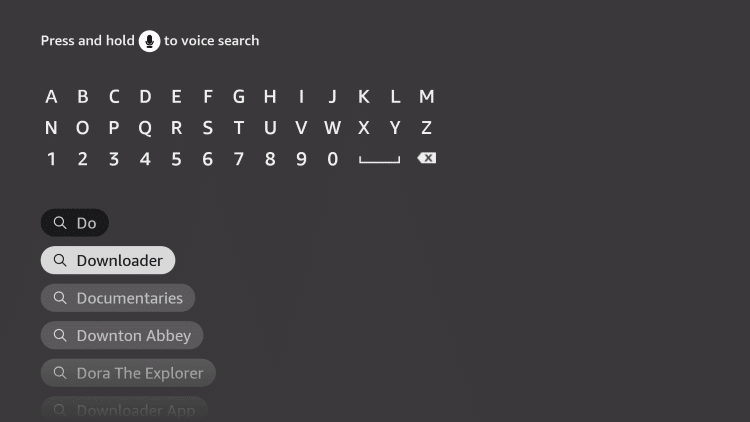
4. Choose the Downloader app.
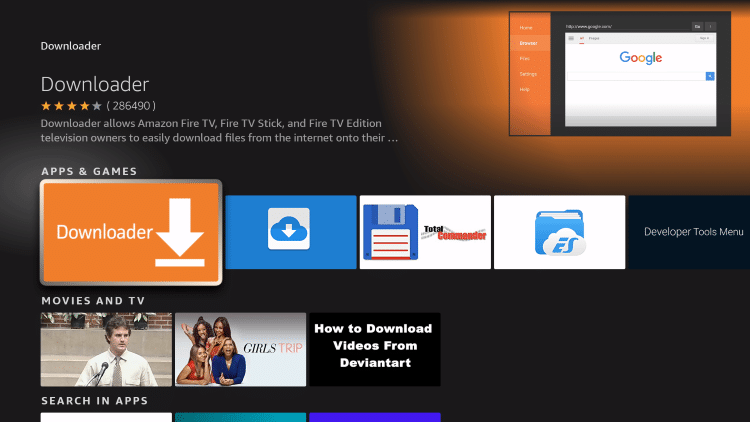
5. Click Download.
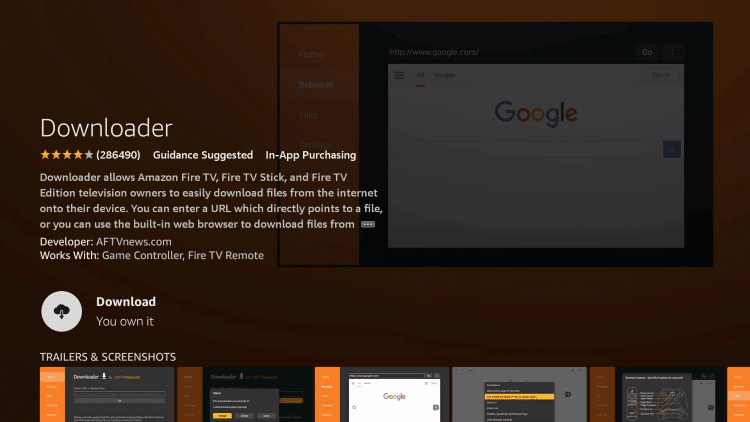
6. Wait for the app to install.
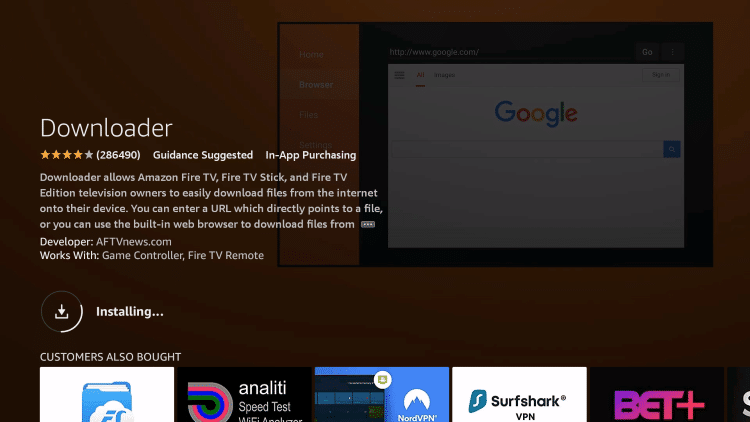
7. Once the app finishes installing click Open.
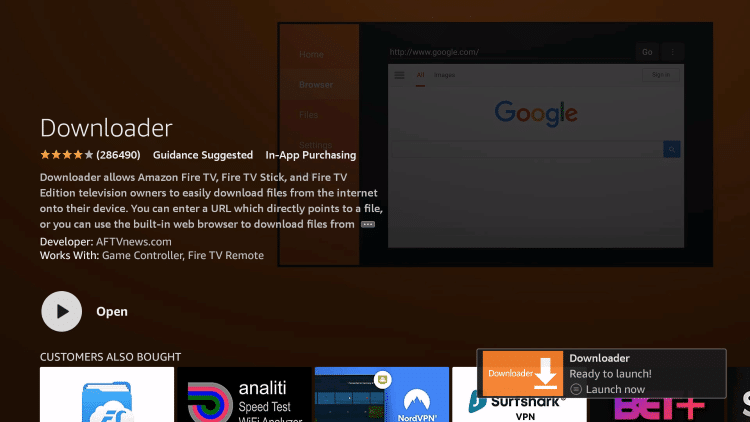
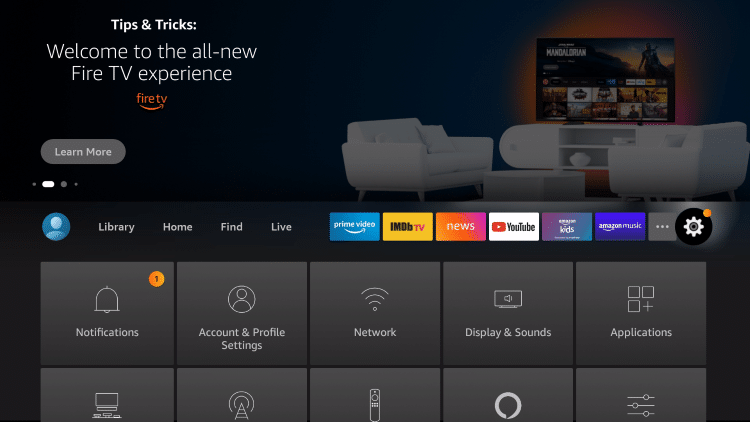
8. Return to the home screen and open Settings.
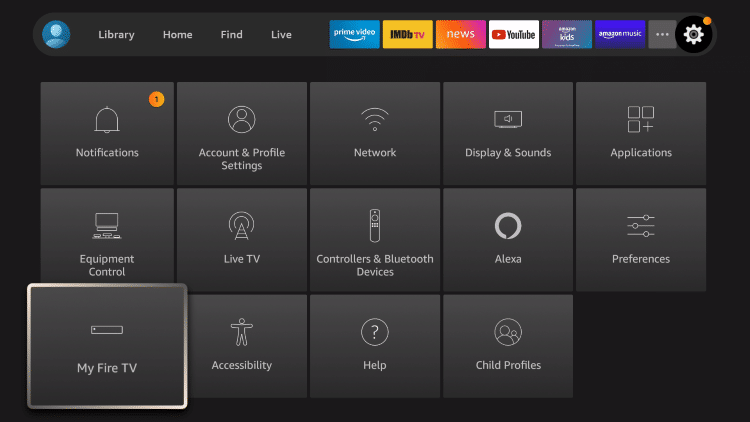
9. Click My Fire TV.
10. Choose Developer options.
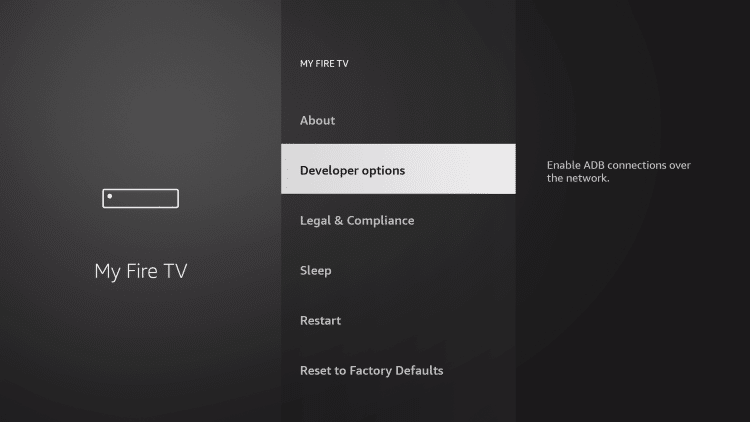
11. Click Install unknown apps.
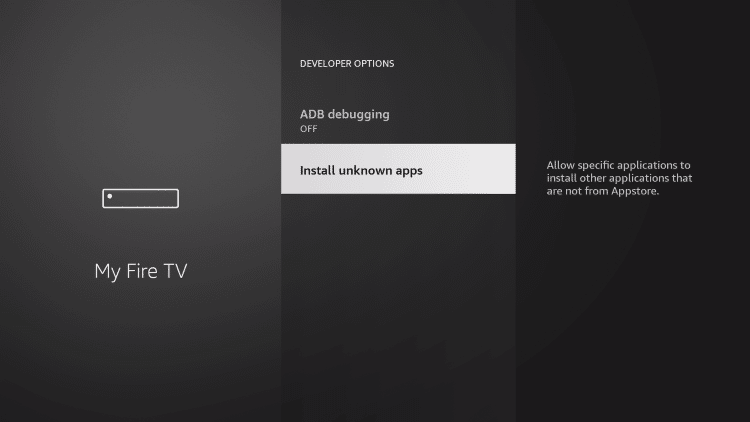
12. Find the Downloader app and click it.
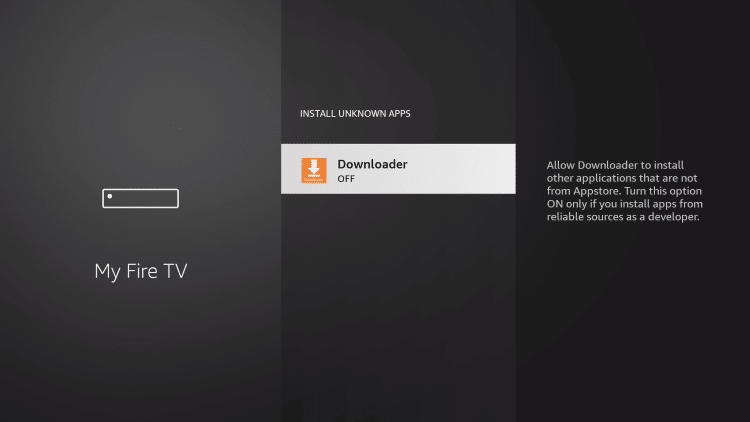
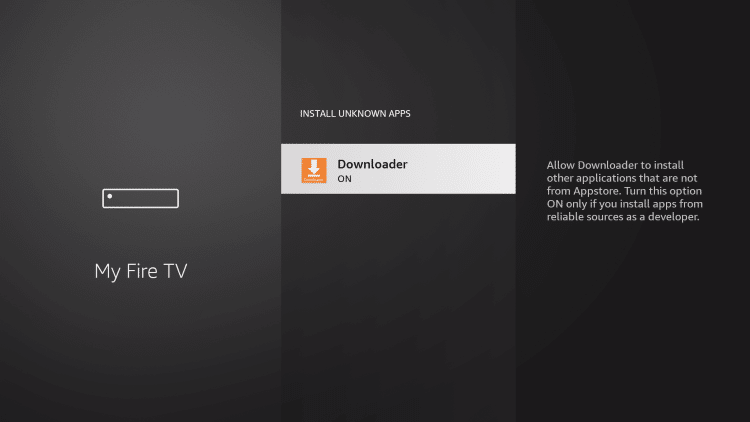
13. This will turn Unknown Sources to On for the Downloader app. This will enable side-loading on your device.
Old Fire TV Interface Instructions
The following screenshot guide is for Amazon Firestick/Fire TV users still using the older interface.
These same steps can also be found within our Downloader on Firestick guide.
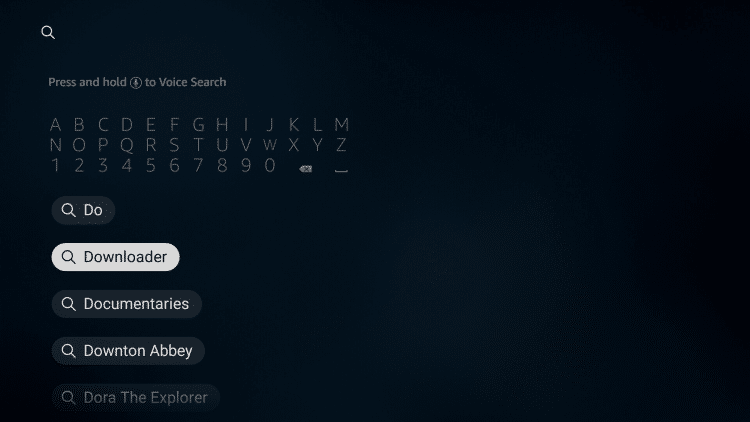
1. From your home screen, find the search icon and type Downloader.
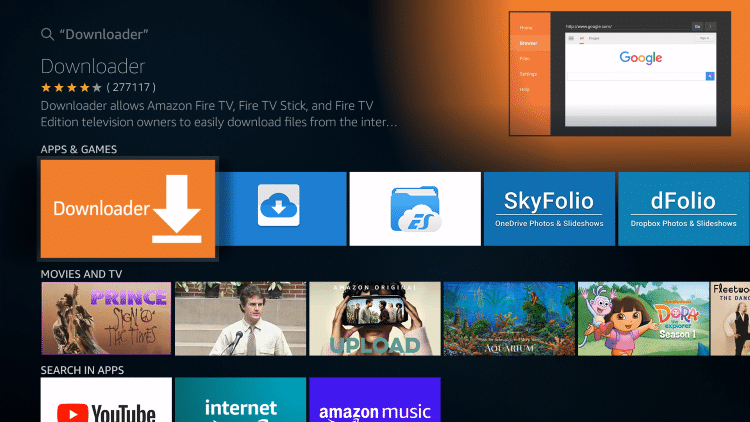
2. Click on the Downloader icon.
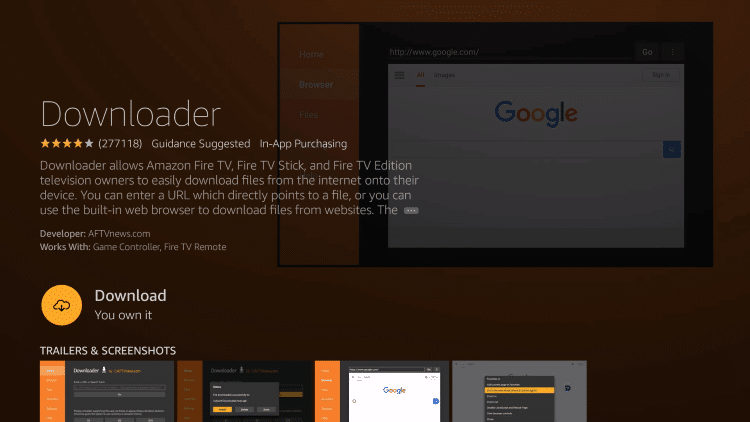
3. Click Download.
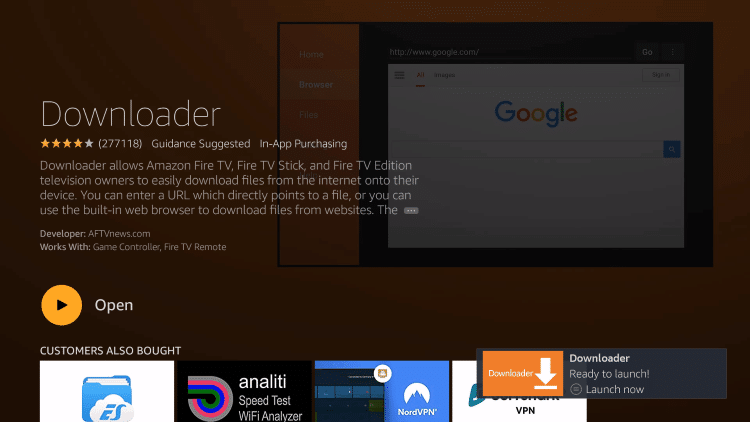
4. Wait for the app to install. Click Open or Launch now.
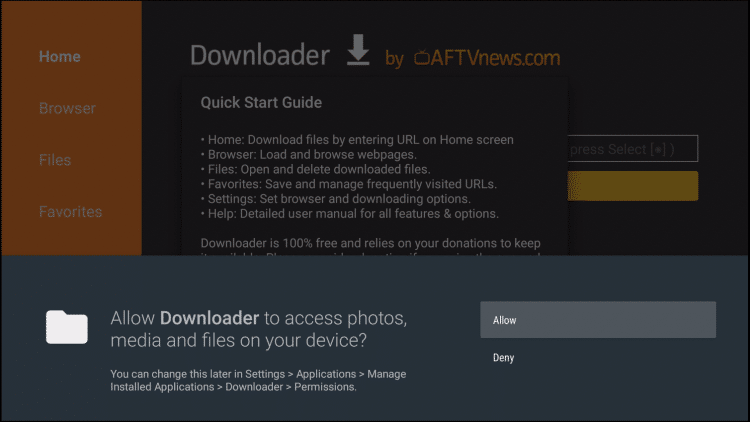
5. Click Allow.
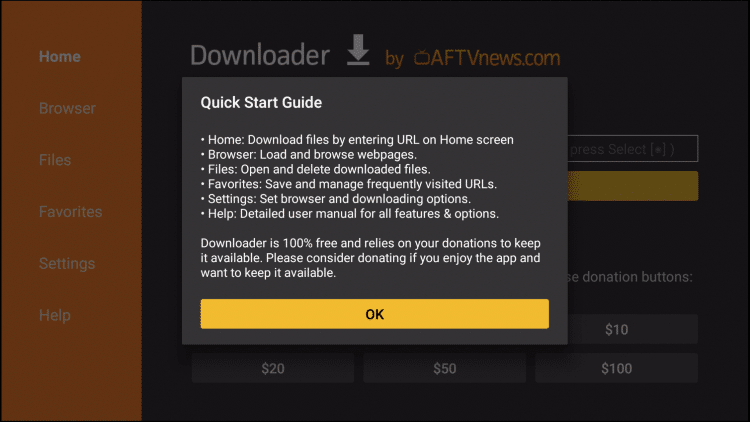
6. Click OK.
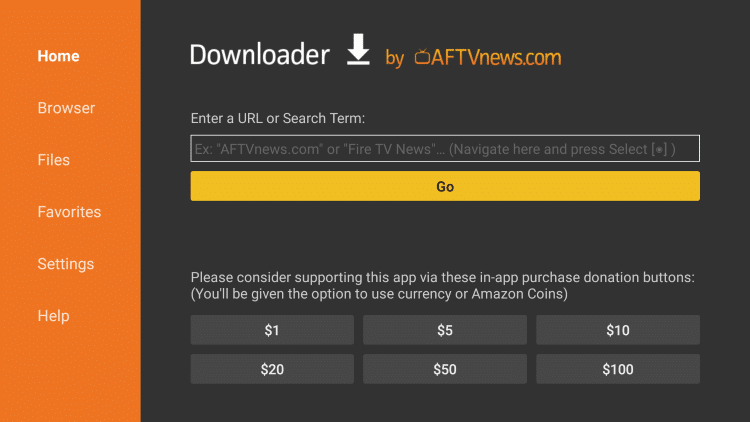
7. You are now on the main screen of Downloader, return back to your device’s home screen.
8. From the home screen of your device, hover over Settings.
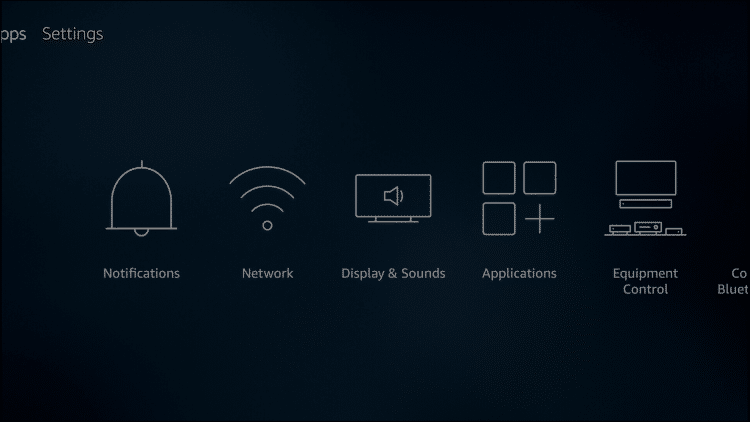
9. Scroll to the right and choose My Fire TV.
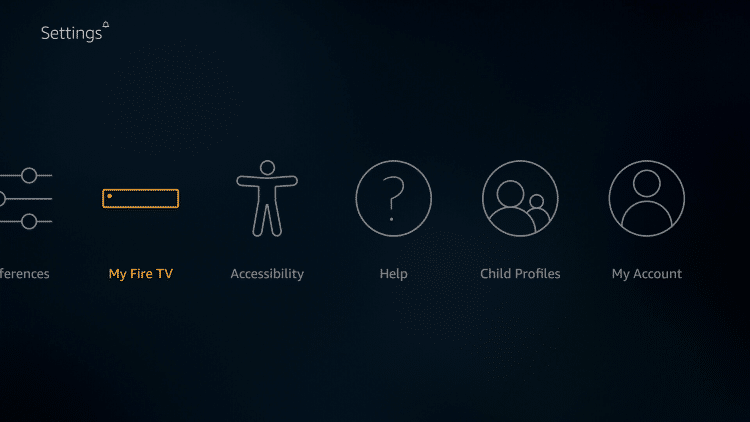
10. Select Developer Options.
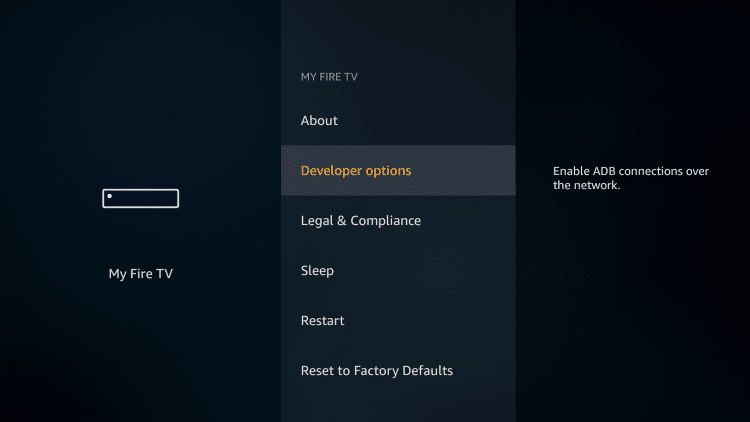
11. Turn on Apps from Unknown Sources.
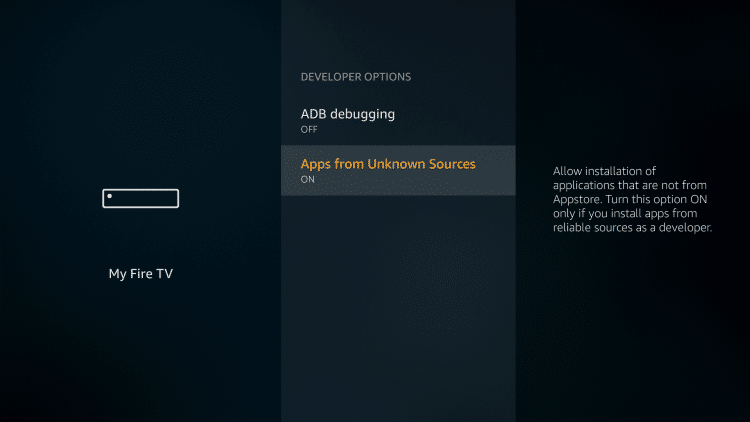
Important Note: For those using the Firestick Lite, 3rd Gen Fire TV Stick, or 2nd Gen Fire TV Cube, click Install Unkown Apps.
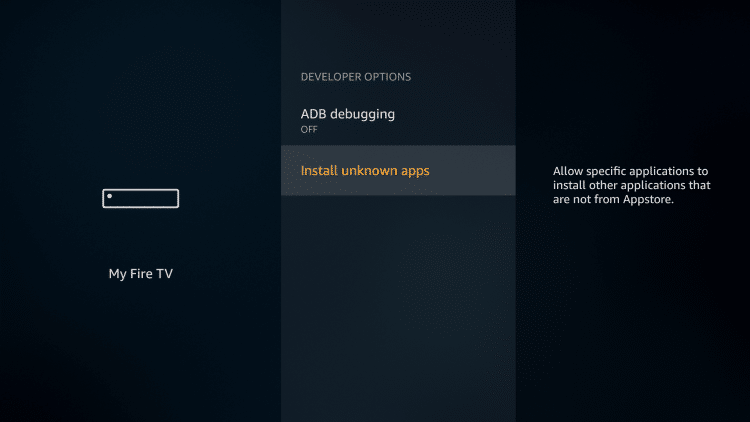
12. Locate and click Downloader. You will notice it says “ON” which will enable unknown sources for side-loading.
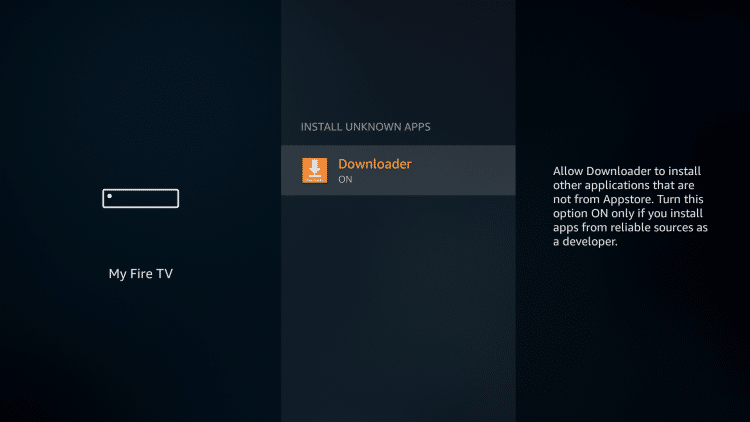
That’s it! You have installed the Downloader app on your Firestick/Fire TV if your device still uses the older interface.
Comments are closed.